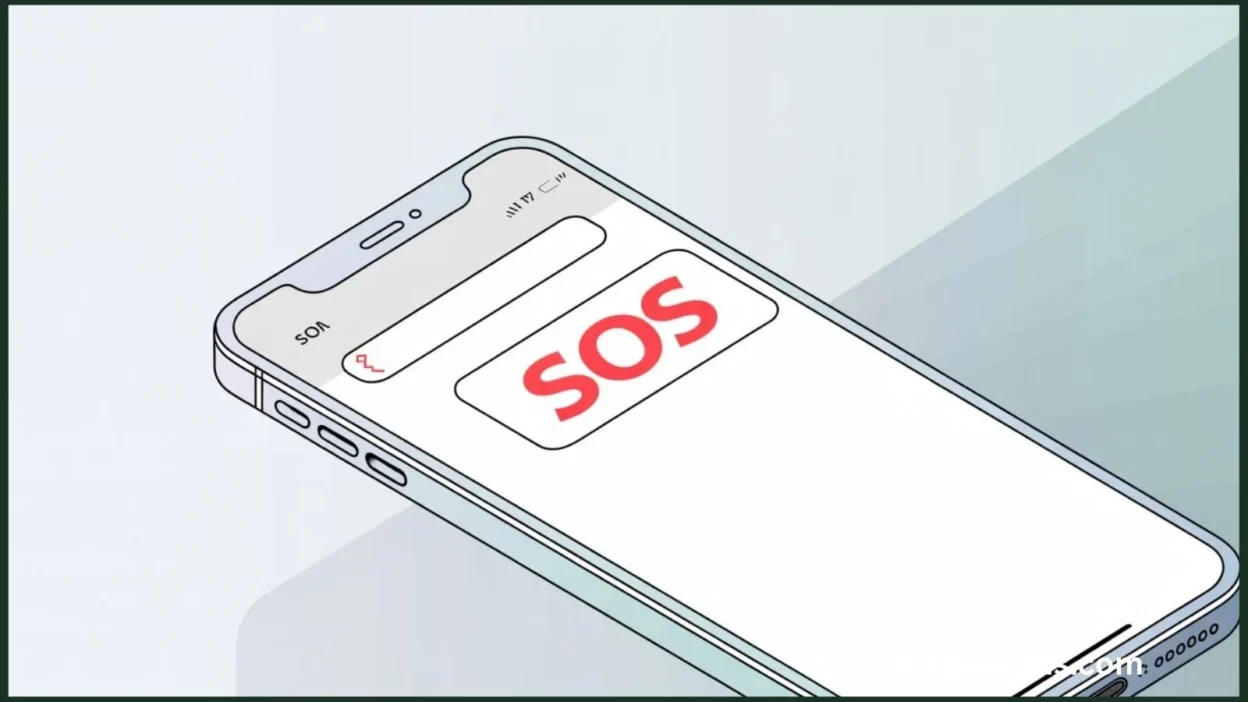
If “SOS” or “SOS Only” appears in the upper-right corner of your iPhone’s status bar, it may look alarming — but it doesn’t mean your device is in danger or malfunctioning.
In Apple’s system, “SOS” is a network status indicator that simply means you can make emergency calls only when regular cellular services are unavailable.
This professional guide explains exactly what SOS means on iPhone, why it appears, and how to fix it using reliable, verified troubleshooting steps.
🔍 What Does SOS Mean on iPhone?
On an iPhone, SOS means your device is not connected to your carrier’s network, but it can still communicate with emergency services through other available networks.
When SOS appears:
- You cannot make regular calls
- You cannot send SMS
- You cannot use mobile data
- You can call emergency numbers (911, 112, 999, etc.)
This feature ensures you can always reach emergency services even when your carrier isn’t available.
Where it appears:
Upper-right corner of the iPhone’s status bar, replacing your carrier name.
Common names:
- SOS
- SOS Only
- Emergency Calls Only
📡 Why Does My iPhone Say SOS or SOS Only?
Your iPhone may enter SOS mode due to one of the following network-related reasons:
1. Weak or No Carrier Signal
You’re in an area where your carrier does not provide coverage:
- Remote or rural locations
- Basements, underground parking
- Buildings with thick concrete walls
2. Temporary Carrier Outage
Your mobile carrier may be experiencing a service interruption.
3. SIM Card Issues
A faulty, unregistered, or improperly placed SIM or eSIM can prevent network access.
4. Airplane Mode Enabled
Airplane Mode disables all cellular communication.
5. Incorrect Network Settings
Misconfigured carrier settings or corrupted network preferences.
6. Device Locked to Another Carrier
If using a locked iPhone with a SIM from a different carrier, SOS may appear.
7. International Roaming Limitations
When traveling abroad, roaming may be:
- Disabled
- Not supported by your plan
- Blocked by your carrier
🧰 How to Fix SOS on iPhone (Step-by-Step Troubleshooting)
Use the following verified steps in order:
1. Toggle Airplane Mode
- Go to Settings
- Turn Airplane Mode ON
- Wait 10 seconds
- Turn it OFF again
This forces the phone to reconnect to the nearest cell tower.
2. Restart Your iPhone
A simple restart clears temporary network glitches.
- iPhone X and later: Hold the Side button + Volume button
- Older models: Hold the Power button
- Slide Power Off, wait 10 seconds, then restart.
3. Check Your SIM or eSIM
For physical SIM:
- Eject the SIM tray
- Clean the SIM
- Reseat it carefully
- Insert it firmly
For eSIM:
- Go to Settings → Cellular
- Ensure your eSIM line is still active
- Confirm your carrier plan is not expired or paused
4. Update Carrier Settings
Carrier updates improve connectivity and fix SOS-related issues.
- Go to Settings → General → About
- If an update appears, tap Update
(You must have Wi-Fi or temporary data access.)
5. Reset Network Settings
This resolves most SOS mode errors.
- Go to Settings → General → Transfer or Reset iPhone → Reset
- Select Reset Network Settings
- Enter your passcode
This does not delete apps or data.
6. Check Carrier Status
If many users in your area are experiencing no service, the cause is likely an outage.
- Visit your carrier’s status page
- Contact customer support
7. Enable Data Roaming (International Use)
- Go to Settings → Cellular → Cellular Data Options
- Turn on Data Roaming
If roaming isn’t included in your plan, contact your carrier.
8. Contact Apple or Your Carrier
If SOS persists after all steps, your issue may be:
- A damaged SIM reader
- Carrier provisioning error
- Hardware antenna issue
Visit an Apple Store or your carrier service center.
🔁 Difference Between “SOS” and “Emergency SOS” on iPhone
| Feature | SOS (Status Bar) | Emergency SOS (Safety Feature) |
|---|---|---|
| Meaning | Emergency-calls-only network mode | Manually activated emergency calling |
| Trigger | No carrier connection | Pressing the side button rapidly |
| Purpose | Alerts user about network issue | Contacts emergency services + sends location |
| Appears Where | Status bar | Full-screen emergency interface |
| User Action Required | Fix network | Intentional activation |
These two features are unrelated and serve different functions.
📱 Can You Use iPhone Normally in SOS Mode?
| Function | Available? |
|---|---|
| Emergency calls | ✔ Yes |
| iMessage | ✘ No |
| SMS | ✘ No |
| Mobile data | ✘ No |
| Wi-Fi | ✔ Yes |
| Calls via carrier | ✘ No |
| FaceTime | ✔ Yes (Wi-Fi only) |
‼️ When Should You Be Concerned?
Contact support if:
- SOS appears everywhere, even in areas with strong coverage
- SOS appears after inserting a new SIM
- Only your phone shows SOS while others on the same carrier have service
- SOS appears after iOS update and does not resolve
❓ Frequently Asked Questions (FAQs)
1. Why does my iPhone say SOS in the US, UK, or Australia?
Because Apple uses the SOS indicator in these countries to show “Emergency Calls Only” mode.
2. Will SOS mode go away on its own?
Yes — once your iPhone reconnects to your carrier.
3. Does SOS mode drain battery?
Not directly, but the phone may use extra power searching for signal.
4. Can you text iMessage when the iPhone is in SOS mode?
Yes, only via Wi-Fi. Cellular SMS will not work.
5. Why does my iPhone say SOS after an iOS update?
Sometimes network settings become corrupted after updates. Reset Network Settings to fix it.
6. Does SOS mean my phone is hacked?
No. It is purely a network connectivity indicator.
7. Can SOS mean SIM not activated?
Yes — unactivated SIMs often trigger SOS mode.
🧠 Conclusion
“SOS” or “SOS Only” on an iPhone does not indicate danger or device failure. It simply means your iPhone cannot connect to your carrier, but it can still contact emergency services.
By following the step-by-step troubleshooting methods — toggling Airplane Mode, restarting the device, checking the SIM, updating carrier settings, or resetting network settings — most users can resolve the issue quickly.
If the problem persists, contacting your carrier or visiting an Apple Store is the next best step.
Your device remains safe, functional, and fully capable of reaching emergency services at all times.

I am Beatrix Potter, a storyteller who loves bringing the wonders of nature, imagination, and gentle magic to life. Through my stories, I share worlds filled with curious animals, quiet countryside adventures, and the kind of simple beauty that warms the heart. Here on magicstoris.com, I continue to inspire readers of all ages with tales that celebrate kindness, creativity, and the timeless joy of storytelling.